
Default Router IP Address & Login Passwords List (Top 16 Brands)
Finding your default router IP address and factory admin credentials allows you to access the web management console to configure Wi-Fi security, update firmware, or set up port forwarding. While the most common default IP addresses are 192.168.1.1, 192.168.0.1, and 192.168.50.1, you can extract the exact gateway IP address in seconds using Windows ipconfig, macOS route probes, or Linux network commands.
- Top 3 Most Common Gateway IPs:
192.168.1.1(Netgear, ASUS, Linksys),192.168.0.1(TP-Link, D-Link), and192.168.50.1(newer ASUS gaming models). - Modern Routers Feature Local Domains: Most brands support friendly browser URLs such as
routerlogin.net(Netgear),tplinkwifi.net(TP-Link), orrouter.asus.com(ASUS). - California SB-327 Abolished Universal Passwords: Routers manufactured after 2020 no longer use 'admin/admin'; each unit features a unique factory password printed on the bottom label.
- Find IP via CLI in 5 Seconds: Run
ipconfigin Windows CMD ornetstat -nr | grep defaultin macOS Terminal to display your active Default Gateway.
How to Find Your Default Gateway IP on Any Device
Before testing factory default IP addresses from a list, you can discover the exact local IP address your router assigned to your current connection. Every device connected via Wi-Fi or Ethernet stores the router's IP as its Default Gateway.
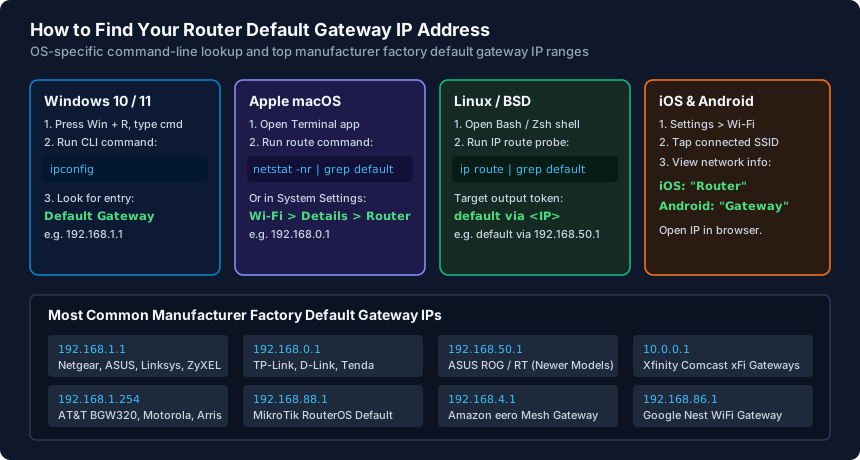
Operating System Step-by-Step Gateway Extraction Commands
Extract your router gateway IP using these native commands:
- Windows (Command Prompt): Press
Win + R, typecmd, and press Enter. Runipconfigand press Enter. Look for the active network adapter (Ethernet or Wi-Fi) and copy the numbers next to Default Gateway (e.g.,192.168.1.1). - macOS (Terminal or GUI): In Terminal, run
netstat -nr | grep default. Alternatively, open System Settings > Wi-Fi, click Details next to your active network, click the TCP/IP tab, and locate the IP listed next to Router. - Linux (Terminal): Open your terminal and run
ip route | grep defaultorroute -n. The IP followingdefault viais your router. - iOS (iPhone / iPad): Open Settings > Wi-Fi, tap the blue info icon
(i)next to your connected Wi-Fi network, and scroll down to Router. - Android: Open Settings > Network & internet > Internet, tap the gear icon next to your active Wi-Fi connection, expand Advanced, and locate Gateway.
The Death of 'admin/admin': California SB-327 & Unique Passwords
Historically, almost every consumer router shipped with universal factory credentials: a username of admin and a password of admin or password. This practice caused massive security vulnerabilities, allowing botnets (such as Mirai) to compromise millions of home routers worldwide.
To eliminate this threat, legislation like California SB-327 mandated that all internet-connected devices manufactured after 2020 must feature unique, individualized factory login credentials.
When setting up a modern router:
- Inspect the physical barcode sticker affixed to the bottom or rear of the router housing.
- Locate the fields labeled Default Access, User Name, and Password (or PIN).
- If the router was previously configured and the sticker password fails, you must perform a 10-second hardware factory reset using a paperclip to restore factory defaults.
What to Do When the Router Login Page Won't Load
If typing your default gateway IP into Chrome or Safari results in an 'Unable to connect' or 'Site can't be reached' error, troubleshoot with these steps:
- Disconnect from VPNs: Commercial VPN clients (NordVPN, ExpressVPN, WireGuard) redirect all network traffic through an encrypted tunnel, blocking access to private local subnets (
192.168.x.x). Disconnect the VPN before logging in. - Bypass Browser HTTPS-Only Mode: Modern browsers automatically upgrade URLs from HTTP to HTTPS. Many older router administrative portals only listen on unencrypted HTTP port 80. Explicitly type
http://192.168.1.1(withhttp://, nothttps://) into the address bar. - Disable Cellular Mobile Data on Phones: If configuring via a smartphone, turn off Cellular Data so your phone doesn't route traffic over 5G instead of local Wi-Fi.
- Direct Ethernet Connection: If Wi-Fi fails, plug your computer directly into LAN Port 1 on the router using an Ethernet cable and configure your network adapter to obtain an IP automatically via DHCP.
Master Default Router IP & Login Directory (16 Major Brands)
| Manufacturer | Default Gateway IP | Local Web Domain | Default Username | Default Password |
|---|---|---|---|---|
| Netgear | 192.168.1.1 or 192.168.0.1 | routerlogin.net | admin | password (or printed sticker) |
| TP-Link | 192.168.0.1 or 192.168.1.1 | tplinkwifi.net | admin | admin (or set during 1st setup) |
| ASUS | 192.168.1.1 or 192.168.50.1 | router.asus.com | admin | admin (or set during 1st setup) |
| Linksys | 192.168.1.1 | myrouter.local | admin | admin (or printed sticker) |
| Ubiquiti (UniFi) | 192.168.1.1 | unifi.ui.com | root / ui | Set during UniFi Console setup |
| MikroTik | 192.168.88.1 | router.lan | admin | Blank (No password) / Sticker |
| D-Link | 192.168.0.1 | dlinkrouter.local | admin | Blank (leave password empty) |
| Tenda | 192.168.0.1 | tendawifi.com | admin | admin (or blank) |
| Synology | 192.168.1.1 | router.synology.com | admin | Set during initial SRM wizard |
| Amazon eero | 192.168.4.1 | eero app only | N/A | Configured via mobile app only |
| Google Nest WiFi | 192.168.86.1 | Google Home app | N/A | Configured via Google Home app |
| Motorola | 192.168.1.254 or 192.168.0.1 | motorolamodal.com | admin | motorola (or printed on sticker) |
| Arris (Surfboard) | 192.168.0.1 or 192.168.100.1 | None | admin | password (or sticker Wi-Fi key) |
| ZyXEL | 192.168.1.1 | zyxel.com | admin | 1234 (or printed on sticker) |
| DrayTek (Vigor) | 192.168.1.1 | None | admin | admin |
| Cisco Small Business | 192.168.1.1 | None | cisco | cisco |
How to Reset a Router When the Default Password Doesn't Work
- Locate the recessed physical 'Reset' pin-hole on the rear or bottom panel of the router housing.
- With the router powered ON, use a straightened paperclip to press and hold the reset micro-switch for 10 to 15 seconds.
- Release the button when front panel LEDs blink simultaneously, then wait 2 to 3 minutes for factory reboot to complete.
- Connect to the factory Wi-Fi SSID printed on the bottom label using the unique default security key, then browse to the default gateway IP.
Frequently Asked Questions
What is the difference between 192.168.1.1 and 192.168.0.1?
Both are private IPv4 network addresses reserved by RFC 1918 for local networks. The only difference is the third octet (subnet identifier). Manufacturers like Netgear and ASUS default to the '1' subnet (192.168.1.1), while TP-Link and D-Link default to the '0' subnet (192.168.0.1). Both function identically.
Why does my router say 10.0.0.1 instead of 192.168.1.1?
10.0.0.1 is another private RFC 1918 address range (Class A). Comcast Xfinity xFi gateways and many enterprise access routers use 10.0.0.1 by default to prevent IP conflicts when customers install third-party routers downstream.
Can I change my default router IP address to something else?
Yes. In your router LAN settings, you can change the IP address to any valid private subnet (e.g., 192.168.10.1 or 10.10.10.1). Changing the default IP improves security against automated browser CSRF attacks and allows you to set up multiple subnets or VLANs.
What if my router doesn't have a web interface and requires an app?
Modern consumer mesh systems (such as Amazon eero, Google Nest WiFi, and TP-Link Deco) disable traditional local web management interfaces by default. You must download the official iOS or Android app and pair your smartphone via Bluetooth to configure the network.
Related Router Setup & Engineering Guides
- DNS Server Not Responding: 5 Step-by-Step Fixes for Fast Internet — Fix the 'DNS Server Not Responding' error on Windows and Mac. Learn how to flush DNS, restart router relay daemons, and switch to 1.1.1.1 and 8.8.8.8.
- How to Set Up a Router — Set up a home or small office router from scratch: connect WAN/ONT cables, release ISP DHCP leases, configure WPA2/WPA3 WiFi, and harden admin access.
- DNS Settings on a Router — Configure router DNS settings using Cloudflare 1.1.1.1, Quad9 9.9.9.9, or Google 8.8.8.8. Understand WAN vs DHCP LAN DNS, DoH/DoT encryption, and DNS leaks.
- IPv6 Router Settings Explained — Configure IPv6 router settings for Comcast Xfinity, AT&T Fiber, and Verizon Fios. Set up Native DHCPv6-PD, SLAAC, /56 or /60 prefix delegation, and firewalls.