
Access Point Placement: Ceiling Mount vs Wall Mount
For optimal coverage, saucer-shaped access points (UniFi, Omada, Cisco) should be mounted horizontally on a ceiling. Their internal dome antennas emit a downward toroidal (donut-shaped) radiation pattern providing 360-degree horizontal coverage; mounting them vertically on a wall rotates this pattern 90 degrees, wasting signal into attics and floors while creating dead zones in adjacent rooms.
- Toroidal Radiation Physics: Ceiling disc APs radiate outward and downward in an inverted umbrella shape; horizontal mounting provides clean Line of Sight across living spaces.
- The Wall Mount Penalty: Mounting a ceiling AP vertically on drywall rotates the radiation pattern 90 degrees, shooting signal into the ceiling rafters and floorboards while losing up to 12 dB laterally.
- In-Wall AP Alternatives: If running ceiling cables is impossible, install dedicated In-Wall APs (UniFi U6-IW / Omada EAP615-Wall) designed specifically for vertical wall-box radiation.
- Multi-Floor Staggering: In multi-story buildings, never align access points directly above each other on consecutive floors; stagger them diagonally to avoid vertical co-channel interference.
Antenna Azimuth and Elevation: How Disc APs Shape Radio Waves
When selecting and deploying enterprise or prosumer wireless access points (such as Ubiquiti UniFi U6/U7 Pro, TP-Link Omada EAP670, or Aruba APs), physical mounting orientation is just as critical as radio transmit power. Many homeowners and IT technicians mistakenly mount disc-shaped access points vertically on hallway walls simply because drywall cable drops are easier to pull than attic ceiling runs.
To understand why this degrades performance, you must examine the antenna's polar radiation pattern across two geometric planes:
- Azimuth Plane (Horizontal Coverage): Looking down at the face of the AP, the internal omnidirectional antennas emit a uniform 360-degree circular wave pattern across the room.
- Elevation Plane (Vertical Coverage): Looking at the side profile of the AP, the metal mounting backplate acts as an RF reflector. It suppresses backward radiation into the ceiling while projecting energy forward and downward in a wide toroidal (donut or inverted umbrella) lobe.
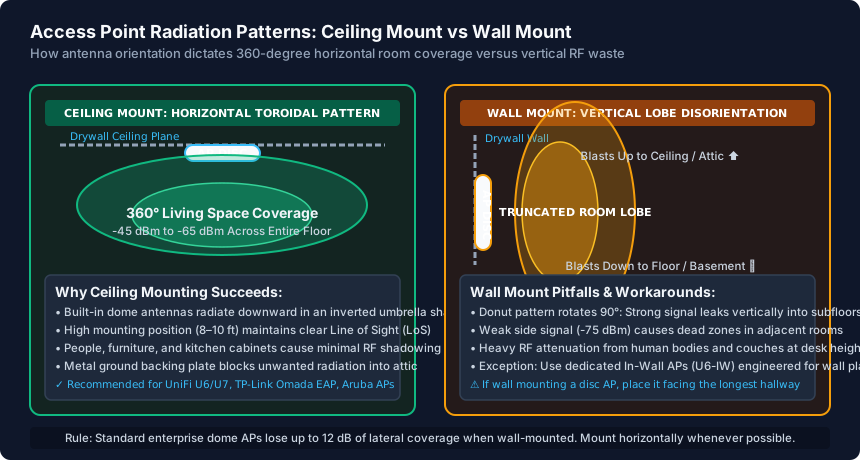
Because the elevation lobe is engineered to spread downward at an angle of roughly 45 to 60 degrees, a ceiling-mounted AP at a height of 8 to 10 feet bathes desks, couches, and mobile devices in a clean -45 dBm to -60 dBm RF blanket.
The Wall-Mount Distortion: Signal Loss into Floors and Ceilings
When you take a ceiling-designed saucer AP and screw it vertically onto a living room wall, the entire 3D radiation lobe rotates by 90 degrees. The consequences on your network topology are severe:
- Vertical RF Waste: The strongest lobe now blasts straight upward into the second-story floorboards/attic and straight downward into the crawlspace/basement. You are heating subfloors with multi-gigabit spectrum while humans sit horizontally across the room.
- Severe Lateral Dead Zones: Because the elevation profile has a sharp null point (a dip in signal) directly behind the mounting plate and along its narrow edges, the rooms to the immediate left, right, and rear of the wall-mounted AP receive signal attenuated by 10 dB to 15 dB. A client that would normally register -62 dBm drops to an unusable -77 dBm.
- Physical Shadowing from Furniture: A wall-mounted AP placed at light-switch height (4 to 5 feet) suffers severe Line of Sight (LoS) obstruction from bookcases, human bodies, couches, and appliances. Walking in front of the AP introduces 6 dB to 9 dB of human body attenuation.
If aesthetics or rental leases force you to wall-mount a disc AP, place it on the exterior wall of the building facing inward toward the longest interior hallway, maximizing the forward lobe trajectory.
Dedicated In-Wall Access Points vs Ceiling Saucers
If you cannot pull Ethernet through ceilings, do not compromise with a misplaced saucer AP. Instead, deploy hardware specifically engineered for wall placement: In-Wall Access Points (such as the Ubiquiti UniFi U6-IW, U7-IW, or TP-Link Omada EAP655-Wall).
In-Wall access points mount flush over standard single-gang electrical junction boxes or low-voltage mud rings. Their RF antennas are physically designed with an asymmetrical forward-facing cardioid pattern that projects energy directly into the room while suppressing radiation backwards into the wall cavity. Furthermore, In-Wall APs solve cable clutter by providing integrated Layer-2 Ethernet switch ports along the bottom edge:
- Integrated 4-Port Switch: Connect smart TVs, Apple TVs, gaming consoles, and desktop PCs directly over copper patch cords without needing separate desktop desktop switches.
- PoE Pass-Through: Many In-Wall units feature an 802.3af PoE output port, allowing you to power a VoIP desk phone or security camera directly from the wall faceplate.
- Targeted Room Coverage: By placing low-power In-Wall APs in bedrooms and offices, you achieve pristine 5 GHz and 6 GHz Wi-Fi localized to each living space while keeping inter-room interference low.
Multi-Story Home Deployment Architecture: The Stagger Rule
When engineering Wi-Fi coverage across a two-story or three-story home, the single biggest layout mistake is vertical co-channel alignment: placing an access point in the first-floor living room and another access point directly above it in the second-floor master bedroom.
Even with drywall and plywood subflooring, 5 GHz signals penetrate vertically with only 4 dB to 6 dB of loss. If both access points are aligned along the same vertical axis, client devices roaming upstairs will experience co-channel contention and sticky connection traps, unable to cleanly decide between the two nodes.
To architect a professional multi-story coverage grid, implement the Diagonal Stagger Rule:
Second Floor:   [AP 2 - West Wing] ─────────────────────────── [Empty Space]
                       │                                             │
First Floor:    [Empty Space] ─────────────────────────── [AP 1 - East Wing]
By staggering AP placements horizontally between floors, you maximize physical distance, take advantage of angular floor attenuation, and ensure clients always possess an unambiguous signal differential of at least 15 dB when transitioning between stories.
Access Point Mounting Positions: RF Coverage & Engineering Tradeoffs
| Mounting Position | Antenna Type Required | Horizontal Coverage Pattern | Line of Sight Score | Attic / Floor RF Bleed | Best Implementation |
|---|---|---|---|---|---|
| Ceiling Mount (Horizontal) | Saucer / Dome Omnidirectional | Perfect 360° uniform circular blanket | Maximum (Above furniture/people) | Minimal (Shielded by metal backplate) | Primary living rooms, open offices, central hallways |
| Wall Mount (Vertical) | Saucer / Dome Omnidirectional | Rotated 90° (Distorted with lateral dead zones) | Poor (Blocked by furniture & bodies) | Heavy signal bleed into floors and attics | Hallways facing long corridors (When ceiling impossible) |
| Dedicated In-Wall AP | Directional / Wall-Tuned Patch | Forward 180° room-focused cardioid | Moderate (Mounted at faceplate height) | Zero backward bleed (Shielded wall box) | Bedrooms, hotel rooms, home offices with hardwired TV/PC |
| Desktop / Shelf Placement | Saucer / Desktop Cone | Inverted upward cone (Uneven coverage) | Very Poor (Surrounded by clutter & walls) | Moderate lateral absorption by walls | Temporary testing; avoid for permanent high-speed setups |
| Attic Mount (Rafters) | Saucer / Dome Omnidirectional | Weakened by ceiling drywall & insulation | Good (Unobstructed in attic space) | Extreme thermal heat in summer (Premature failure) | Avoid: Extreme summer heat throttles AP CPU and radios |
Access Point Physical Installation Checklist
- Position saucer access points horizontally on ceilings for 360-degree downward coverage.
- Maintain at least 3 feet of separation between access points and fluorescent lighting ballasts or HVAC ducts.
- Mount ceiling APs at standard heights between 8 and 11 feet for optimal elevation angle geometry.
- Deploy dedicated In-Wall APs with built-in Ethernet switches if ceiling drops are architecturally impossible.
- Stagger access point locations diagonally between floors to avoid vertical co-channel overlap.
- Perform a live walk-around Wi-Fi survey (WiFiman / NetSpot) to verify RSSI remains above -65 dBm across all living spaces.
Frequently Asked Questions
Can I mount a UniFi or TP-Link Omada access point on a wall instead of a ceiling?
Yes, it will function, but with noticeable coverage trade-offs. Because saucer AP antennas are engineered for downward toroidal radiation, wall mounting rotates the pattern vertically, blasting signal into the ceiling and floor while reducing lateral coverage to adjacent rooms by up to 10–12 dB. If wall mounting is required, use a dedicated In-Wall AP.
Can I put an access point in the attic facing down through the ceiling?
While RF signals will penetrate drywall ceilings easily, placing access points in an unconditioned attic is strongly discouraged. Summer attic temperatures routinely exceed 130°F (55°C), triggering thermal throttling on the AP's processor, dropping throughput, and causing capacitor failure.
How high should an access point be mounted on the ceiling?
The ideal ceiling mounting height for standard residential and office omnidirectional APs is between 8 and 10 feet. Mounting higher than 14 feet requires specialized high-ceiling or narrow-beam directional antennas to prevent signal dispersion.
Why is my Wi-Fi slow when the access point is sitting on a bookshelf?
Placing an AP on a wooden or metal bookshelf surrounds the antennas with dense material, causing severe signal reflection and multipath distortion. Additionally, books, metal bookends, and electronics create dead zones directly behind the shelf.
Related WiFi Setup & Engineering Guides
- WiFi Channel Planning Guide (2.4 GHz, 5 GHz & 6 GHz) — Plan non-overlapping WiFi channels on 2.4 GHz (1, 6, 11), 5 GHz (UNII-1, UNII-3, DFS), and 6 GHz. Stop adjacent-channel interference across multi-AP setups.
- How to Fix Random WiFi Drops and Disconnects — Diagnose and fix random WiFi drops: stop 5 GHz DFS radar channel dumps, extend short DHCP lease timers, disable buggy Airtime Fairness, and fix roaming flaps.
- Guest WiFi Setup Guide for Homes and Offices — Set up a secure Guest WiFi network for homes and small offices: enable AP client isolation, block intranet LAN access, cap bandwidth, and isolate IoT devices.
- WiFi Extender vs Mesh WiFi: Which Should You Buy? — Compare WiFi range extenders vs Mesh WiFi: understand the 50% half-duplex repeater penalty, 802.11k/v/r fast roaming, tri-band backhaul, and wired APs.