
802.11k, 802.11v, 802.11r Fast Roaming Setup Guide
To eliminate audio dropouts and video freezes when walking between mesh nodes or access points, enable 802.11k, 802.11v, and 802.11r (Fast BSS Transition). Together, they slash AP handoff times from 520 ms down to under 50 ms by providing pre-scanned neighbor reports and caching WPA encryption keys.
- The 500ms Roaming Cliff: Standard Wi-Fi disconnects and performs a full 4-way cryptographic handshake when moving between APs, dropping Zoom calls and gaming packets.
- 802.11k (Neighbor Reports): The AP gives the client a curated list of surrounding channels and BSSIDs, eliminating the need to blind-scan all 30+ Wi-Fi channels.
- 802.11v (BSS Transition Management): Allows the access point to suggest an optimal AP and band to a 'sticky' client that refuses to let go of a weak signal.
- The IoT 802.11r Trap: Older 2.4 GHz smart plugs (ESP8266, Tuya) fail to parse 802.11r Fast Transition tags and will drop offline; solve this by disabling 802.11r on dedicated IoT SSIDs.
Anatomy of a Roaming Drop: Why Voice and Video Calls Freeze
In a home or office equipped with multiple wireless access points or a mesh Wi-Fi system, client devices are expected to switch seamlessly to the nearest access point as you move from room to room. However, under standard IEEE 802.11 architecture, the client device holds 100% decision authority over when to roam—and the standard roaming process is agonizingly slow.
When a smartphone moves away from the living room AP, its Received Signal Strength Indicator (RSSI) degrades to -75 dBm. Under legacy roaming protocols, the phone must perform these sequential steps:
- Channel Scanning (150–250 ms): The client temporarily pauses data transfer to tune its radio through all 2.4 GHz and 5 GHz channels, listening for probe responses.
- Re-Authentication & Association (30–50 ms): The client de-authenticates from the old AP and associates with the new bedroom AP.
- 4-Way Cryptographic Handshake (150–300 ms): For WPA2-PSK or WPA3-SAE networks, the client and new AP must derive new Pairwise Transient Keys (PTK) and Group Temporal Keys (GTK) from scratch over four round-trip frame exchanges.
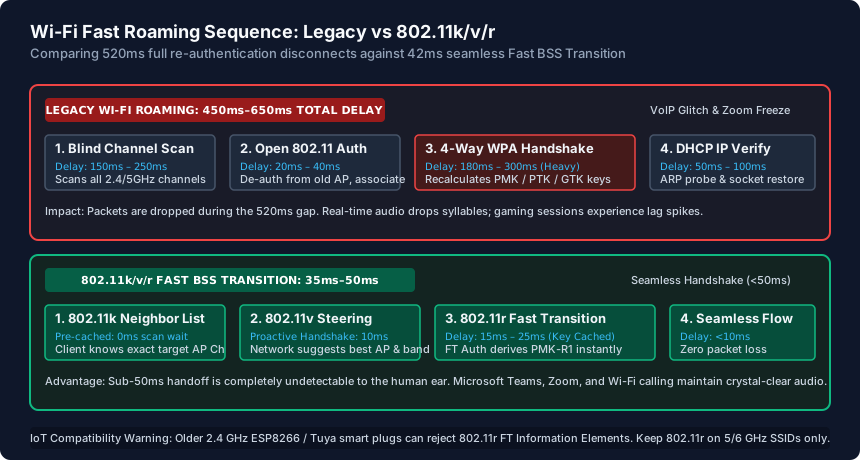
The cumulative delay routinely reaches 450 ms to 650 ms. While unnoticeable during background web browsing or buffered YouTube streaming, this latency spike causes Microsoft Teams and Zoom calls to stutter, voice syllables to clip, and online gaming sessions to disconnect.
How 802.11k, 802.11v, and 802.11r Cooperate for Seamless Transitions
True seamless roaming is not achieved by a single protocol, but by the coordinated interplay of three distinct IEEE amendments:
- IEEE 802.11k (Radio Resource Measurement): Instead of forcing the smartphone to scan all 36 Wi-Fi channels blindly when signal drops, the connected AP provides an 802.11k Neighbor Report. This report tells the phone: "The two closest access points are AP-2 on Channel 48 and AP-3 on Channel 149." The phone scans only those two frequencies in under 15 ms, saving battery and eliminating scanning lag.
- IEEE 802.11v (Wireless Network Management / BSS Transition): Solves the notorious 'sticky client' problem where a smartphone stays connected to a distant downstairs AP at -80 dBm even while standing two feet away from an upstairs AP. With 802.11v, the network controller sends a BSS Transition Management (BTM) Request, advising the client to transition to the stronger node.
- IEEE 802.11r (Fast BSS Transition / FT): Eliminates the entire 4-way WPA handshake bottleneck. During initial association, a master key hierarchy (PMK-R0) is established. When roaming to AP-2, the client derives a secondary key (PMK-R1) pre-cached in hardware. Re-association and authentication occur in a single 2-frame exchange, completing in under 30 ms.
Working in unison, 802.11k locates the target AP, 802.11v steers the client at the right threshold, and 802.11r performs the cryptographic handshake instantaneously.
The Smart Home Trap: Why 802.11r Breaks Older 2.4 GHz IoT Devices
Given the speed advantages of Fast Roaming, many network administrators immediately toggle 802.11r across all SSIDs in their router controller—only to wake up to dozens of offline smart home gadgets. Smart plugs, Tuya Wi-Fi light bulbs, older ESP8266-based microcontrollers, and wireless security cameras frequently fail to connect.
The root cause lies in how 802.11r modifies standard Wi-Fi beacon frames. To advertise Fast BSS Transition capabilities, access points insert a custom Mobility Domain Information Element (MDIE) into their management frames. Many cheap consumer IoT Wi-Fi chips contain rigid, poorly written firmware network stacks. When an ESP8266 chip encounters the unrecognized MDIE byte string in the SSID beacon, its association parser panics and drops the connection with an AUTH_FAIL error code.
The architectural rule for enterprise and prosumer homelabs is straightforward:
- Main Personal & Office SSID (Dual-Band 5 GHz / 6 GHz): Enable 802.11k, 802.11v, and 802.11r (FT Over-the-DS or Over-the-Air). Modern smartphones (iPhones, Samsung Galaxies), iPads, and laptops fully support these standards and roam flawlessly.
- Dedicated IoT SSID (2.4 GHz Only): Enable 802.11k and 802.11v, but disable 802.11r completely. Stationary smart plugs never move between rooms and never need fast roaming, eliminating compatibility disconnects.
Configuring Fast Roaming in UniFi, Omada, and Asuswrt-Merlin
Enabling and tuning fast roaming parameters takes under five minutes in modern multi-AP management dashboards:
- Ubiquiti UniFi Network: Navigate to Settings > WiFi > [Select SSID] > Advanced. Check the boxes for BSS Transition (802.11v) and Fast Roaming (802.11r). Leave Fast Roaming unchecked on your separate IoT VLAN SSID. Additionally, configure Minimum RSSI to
-75 dBmon 5 GHz to cleanly disconnect lingering devices. - TP-Link Omada SDN: Open Settings > Wireless Networks > WLAN. Expand Advanced Settings and enable Fast Roaming (802.11k/v/r). Omada utilizes 802.11r Over-the-DS (Distribution System), communicating key derivations across Ethernet backhauls.
- Asuswrt / Asuswrt-Merlin (AiMesh): Navigate to Wireless > Professional. Select 5 GHz, scroll to the bottom, and set Roaming assistant to Enable (Disconnect clients below
-72 dBm). Enable 802.11k/v/r toggles under advanced firmware settings.
After applying these settings, walk through your home while on an active Wi-Fi phone call or FaceTime stream. In UniFi or Omada client logs, you will observe client roam events recorded with transition delays between 28 ms and 45 ms, completely imperceptible to real-time voice communications.
IEEE 802.11 Roaming Standards: Function, Latency & IoT Compatibility
| Standard | Primary Mechanism | Role in Roaming | Latency Reduction | Client Compatibility | IoT Breakage Risk |
|---|---|---|---|---|---|
| Legacy 802.11 (Default) | Full blind scan + 4-way handshake | Standard fallback when roaming standards disabled | None (450ms–650ms delay) | 100% of all devices | Zero risk (Universal standard) |
| IEEE 802.11k | Radio Resource Neighbor Reports | Provides target channel list so client avoids blind scanning | Cuts scan delay from 250ms to 15ms | High (All iPhones, modern PCs, Android) | Extremely Low (Safe for most IoT) |
| IEEE 802.11v | BSS Transition Management (BTM) | Network recommends optimal AP to prevent sticky client traps | Steers client proactively before signal dies | High (Windows 10/11, macOS, iOS, Android) | Low (Usually ignored if unsupported) |
| IEEE 802.11r (FT Over-the-Air) | Fast BSS Transition via wireless air frames | Caches cryptographic PMK-R1 keys; bypasses 4-way handshake | Slashes auth delay from 300ms to <30ms | Medium (Modern phones/PCs only) | High: Crashes cheap 2.4GHz Tuya/ESP8266 plugs |
| IEEE 802.11r (FT Over-the-DS) | Fast BSS Transition via wired Ethernet backhaul | Pre-authenticates with new AP across the wired switch | Fastest possible handoff (<20ms) | Medium (Requires controller infrastructure) | High: Avoid on legacy IoT SSIDs |
Fast Roaming Configuration & Verification Checklist
- Verify your multi-AP setup shares an identical SSID, WPA security type, and passphrase across all nodes.
- Connect all access points via wired Ethernet backhaul to prevent wireless mesh re-authentication delays.
- Enable 802.11k (Neighbor Reports) and 802.11v (BSS Transition) on all wireless SSIDs.
- Enable 802.11r (Fast BSS Transition) on main 5 GHz / 6 GHz user networks.
- Disable 802.11r strictly on 2.4 GHz IoT smart home SSIDs to prevent ESP8266 / Tuya disconnects.
- Set a 5 GHz Minimum RSSI threshold (-72 dBm to -75 dBm) to prevent sticky clients from clinging to distant nodes.
Frequently Asked Questions
What is the difference between 802.11k, 802.11v, and 802.11r?
802.11k tells your phone which nearby access points exist so it does not have to search blindly. 802.11v allows the router to tell your phone when to move if your signal gets weak. 802.11r pre-calculates the security keys so the phone can connect to the new access point in under 30 milliseconds without re-authenticating.
Why do my smart plugs disconnect when I turn on Fast Roaming?
Cheap smart home plugs (Tuya, Sonoff, Shelly using ESP8266 or basic Realtek chips) have primitive network firmware that cannot interpret the 802.11r Fast Transition tags inside the Wi-Fi beacon. They crash and fail to connect. Always keep 802.11r disabled on your 2.4 GHz IoT network.
Does fast roaming work if I have two routers from different brands?
Generally, no. 802.11k/v/r roaming requires coordinated central coordination across access points to share neighbor reports and cryptographic mobility domain keys. You need access points managed by a single controller (such as UniFi, TP-Link Omada, or Aruba) or an integrated mesh system.
How can I tell if my smartphone supports 802.11r?
All modern Apple iPhones (iPhone 6s and newer), iPads, Samsung Galaxy S-series, Google Pixel phones, and Windows 10/11 laptops with Intel Wi-Fi cards fully support 802.11k, 802.11v, and 802.11r out of the box.
Related WiFi Setup & Engineering Guides
- WiFi Channel Planning Guide (2.4 GHz, 5 GHz & 6 GHz) — Plan non-overlapping WiFi channels on 2.4 GHz (1, 6, 11), 5 GHz (UNII-1, UNII-3, DFS), and 6 GHz. Stop adjacent-channel interference across multi-AP setups.
- How to Configure WiFi for Speed and Stability — Optimize router WiFi settings for speed and stability: set 20/80/160 MHz channel widths, choose WPA2-AES or WPA3-SAE, and tune 2.4/5/6 GHz transmit power.
- How to Fix Random WiFi Drops and Disconnects — Diagnose and fix random WiFi drops: stop 5 GHz DFS radar channel dumps, extend short DHCP lease timers, disable buggy Airtime Fairness, and fix roaming flaps.
- Guest WiFi Setup Guide for Homes and Offices — Set up a secure Guest WiFi network for homes and small offices: enable AP client isolation, block intranet LAN access, cap bandwidth, and isolate IoT devices.